01
Install the software
Download and open ETERNYTIME-RFID-Collector-0.1.10.msi. Follow the wizard, then launch ETERNYTIME RFID Collector from the Desktop or Start menu.
Your settings are saved when you click Save and when you exit the software.
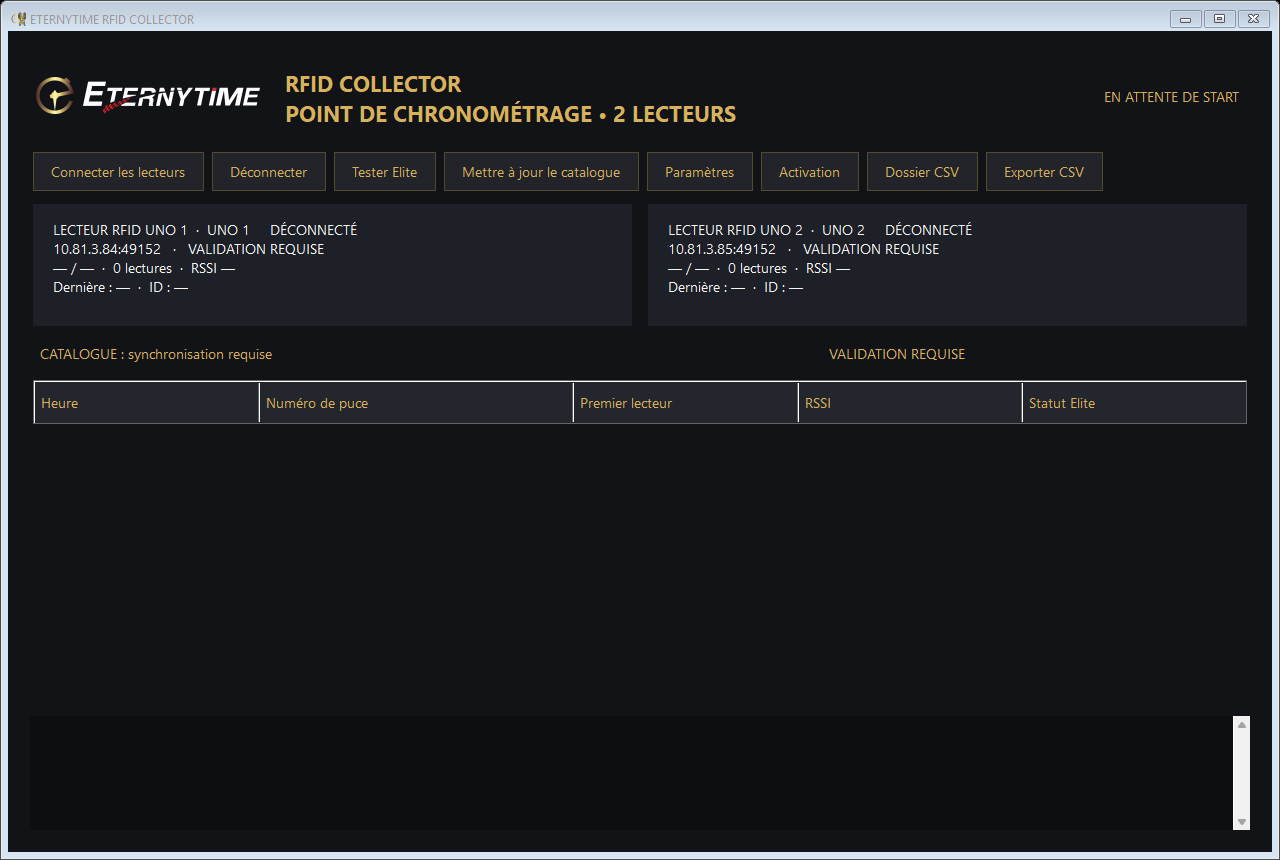
The screenshots show the original French software interface; the guide explains the controls in your selected language.
RFID COLLECTOR · WINDOWS
Connect your UNO readers, identify chip numbers and send passings to Elite V3.
Download for WindowsVersion 0.1.10 · Windows 10 / 11 · 64-bit
GETTING STARTED
Prepare the network and synchronize the software before heading to the track.
Download and open ETERNYTIME-RFID-Collector-0.1.10.msi. Follow the wizard, then launch ETERNYTIME RFID Collector from the Desktop or Start menu.
Your settings are saved when you click Save and when you exit the software.
Connect the readers and PC to the same local network. Disconnect them in RFID Settings or any other software before clicking Connect readers.
| Setting | UNO 1 | UNO 2 |
|---|---|---|
| IP address | 10.81.3.84 | 10.81.3.85 |
| TCP port | 49152 | 49152 |
| Subnet mask | 255.255.255.0 | |
| Gateway | 10.81.3.1 | |
Set the subnet mask and gateway on the readers. In Settings, adjust the IP addresses if needed. If you only have one reader, clear Enabled for the absent reader.
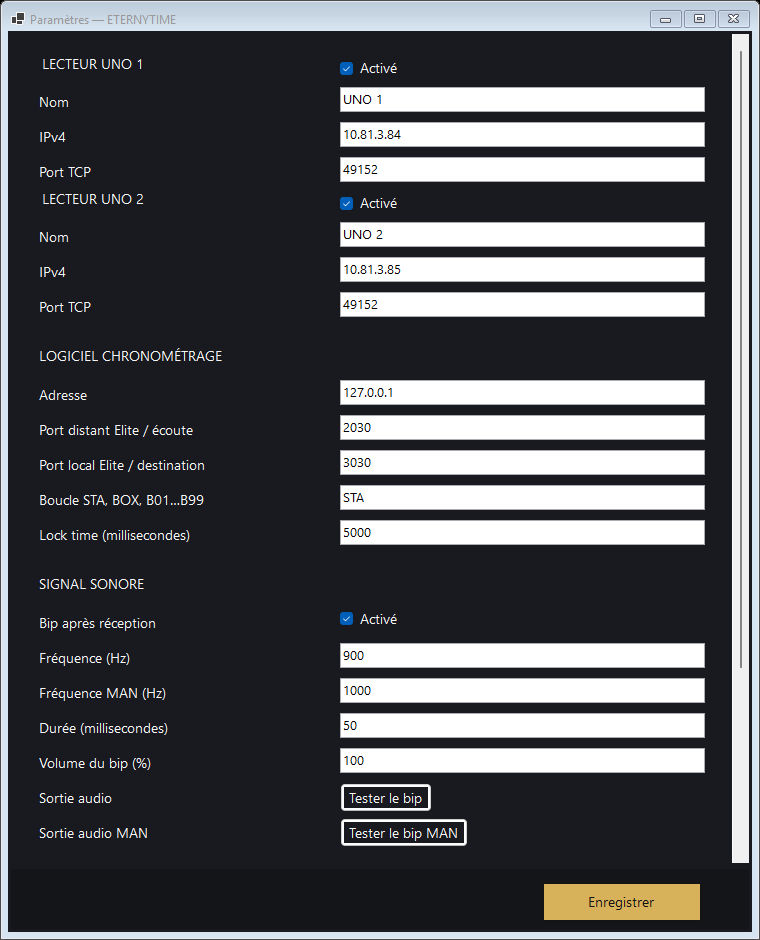
Click Test beep before the race, then Save. A duplicate ignored during the lock time does not trigger another beep.
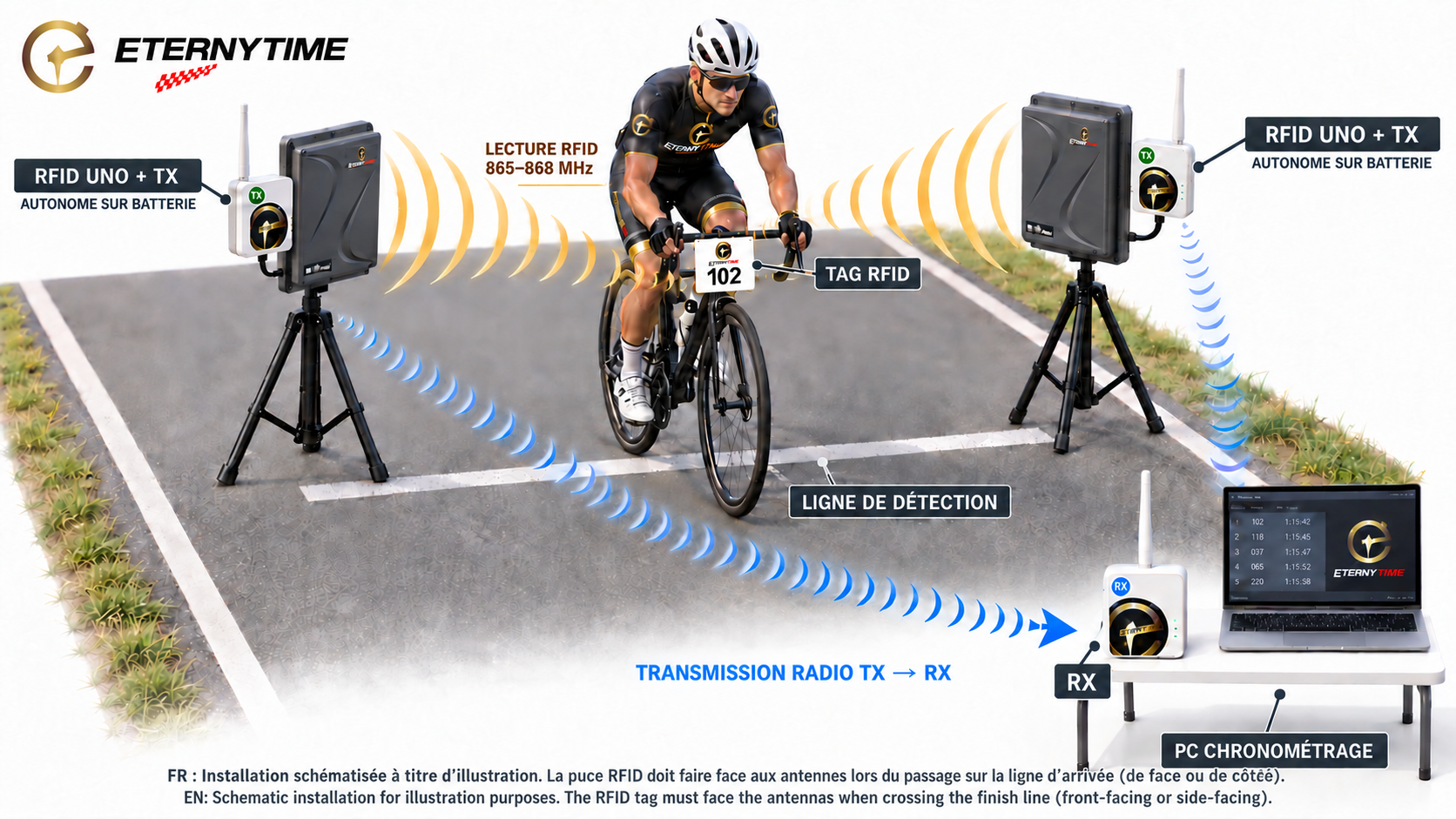
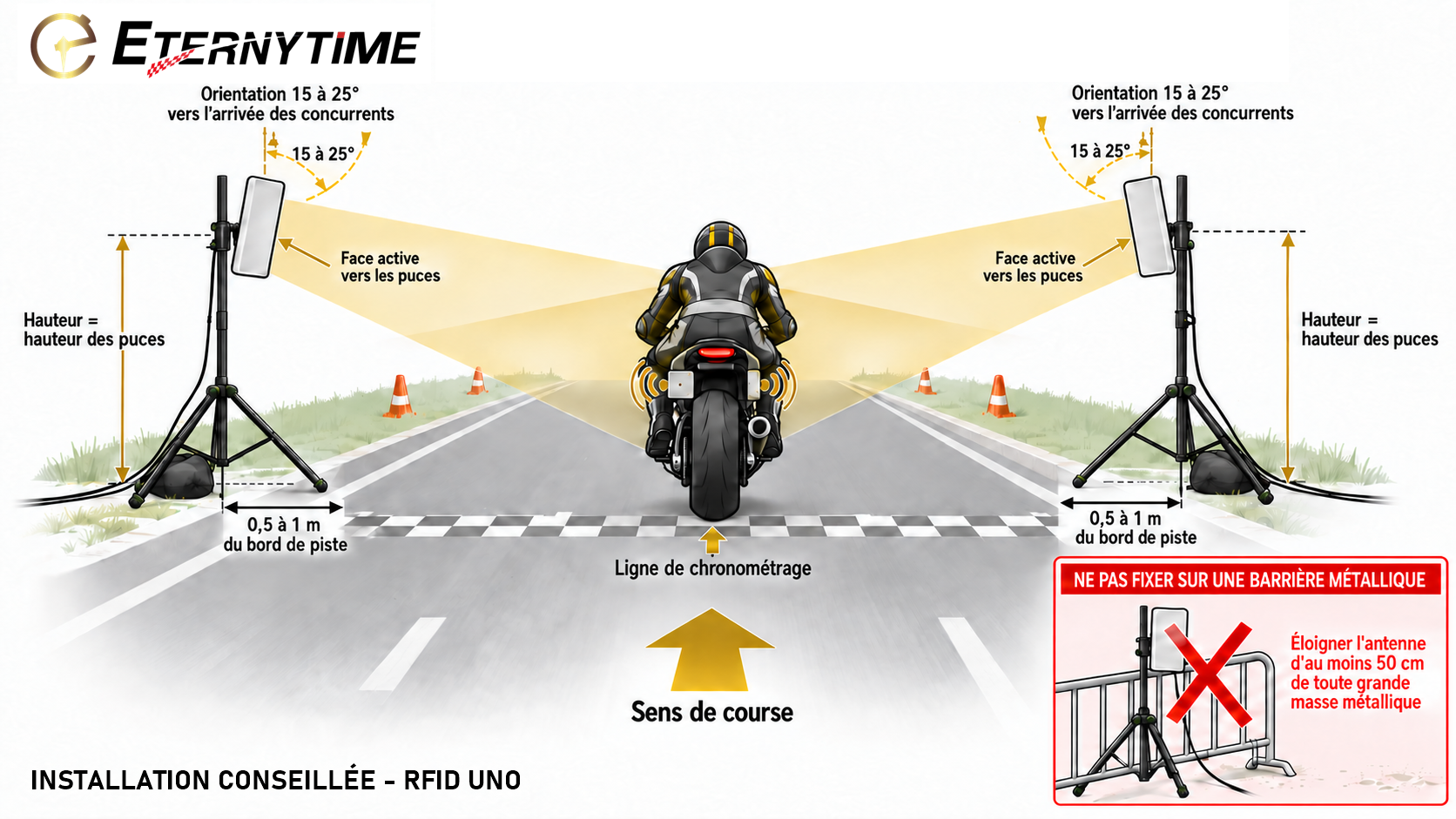
Place the two RFID UNO antennas facing the chips, on opposite sides of the timing line, using stable tripods. Follow the orientation and distances shown below. Never mount an antenna on a metal barrier, and leave at least 50 cm between the antenna and any large metal object.
Connect your reader with Internet available. If ETERNYTIME has already authorized it, the software automatically retrieves its license and catalogue, even on a new PC.
For a reader that has not yet been registered, open Activation → Copy activation code and send the code to your ETERNYTIME administrator. Once approved, click Update catalogue.
Before leaving, check AUTHORIZED, CATALOGUE UP TO DATE and VALID OFFLINE LICENSE. The license allows offline use for 365 days. Changing PCs does not require new approval, but the new PC needs Internet for its first activation.
If Elite and Collector run on the same PC, open the timer settings in Elite, enable a timer and enter:
| Field in Elite | Value |
|---|---|
| Protocol | Chronelec V3 (2009) |
| IP address | 127.0.0.1 |
| Remote port | 2030 |
| Local port | 3030 |
In Collector, keep listening port 2030, destination port 3030 and loop STA. Restart Collector after changing these settings.
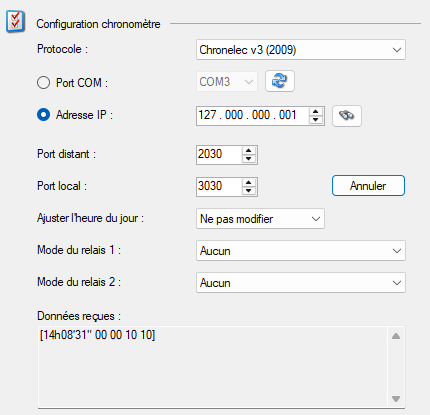
Leave Adjust time of day set to Do not change. Open Collector, then run the connection test from the timing software.
Expected result: the test returns the current time of the PC running Collector in Received data, in the format [HHhMM’SS" 00 00 10 10]. The screenshot time is an example: the response should match the time of your test, within one second.
This response confirms communication with Collector, even before a race starts. It does not confirm a chip read: next, send START and check a passing. The Test Elite button in Collector only checks its local decoder; also test from your timing software.
The duplicate-filtering window is 5 seconds by default and is shared by both readers.
CSV folder opens the race files. After the session ends, Export CSV saves a copy. Passings show the corresponding chip number.
The CSV records the transmission stages of each passing: use the last row for each sequence to find its final status.
TROUBLESHOOTING
Check its power, IP address, port 49152 and that the PC is on the same network. Disconnect RFID Settings. Disable the second reader if you only use one.
On the same PC, check address 127.0.0.1 and remote port 2030 / local port 3030 in Elite. Run the test in Elite, then send START. Check that the reader is authorized and the chip is in the catalogue.
Install version 0.1.10 or later, connect the already authorized reader and keep Internet available for the first synchronization. No new code needs approval.
Prepare each PC beforehand by connecting the reader and synchronizing. A valid license and catalogue already downloaded remain available offline. A new PC cannot retrieve its first license without Internet.